
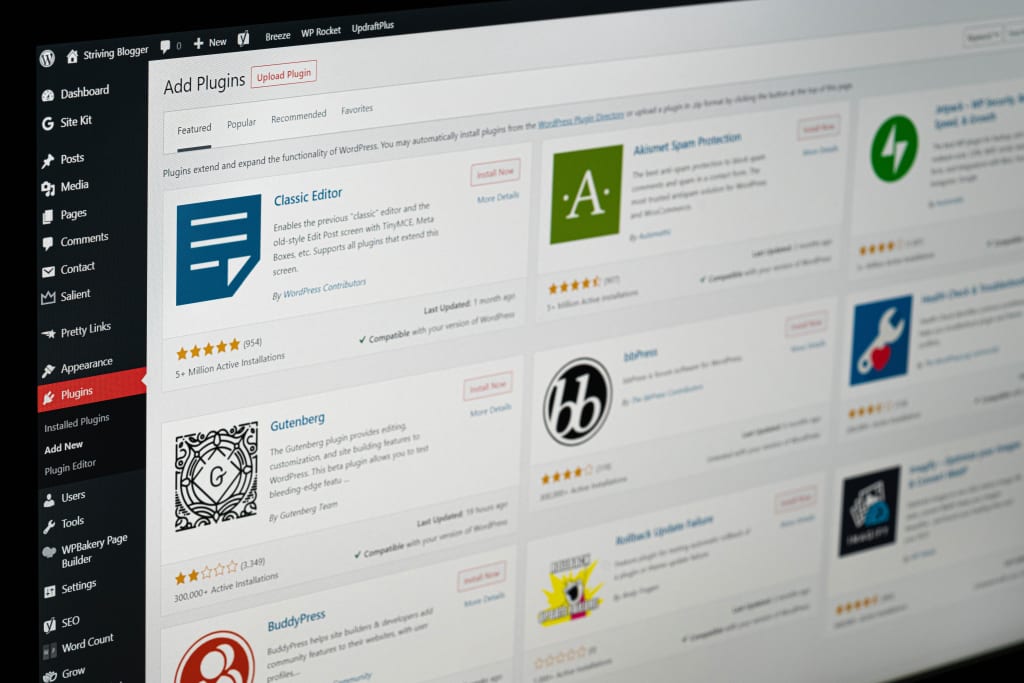
A business website does not need a fixed list of “must-have” WordPress plugins. It needs the smallest reliable set that supports real requirements. Every additional plugin introduces another supplier, update cycle and possible point of conflict, so selection should begin with the job—not the product name.
Start with requirements and existing capability
List what the website must do, then check whether WordPress, the theme, the host or an existing plugin already provides it. Avoid installing two tools for the same purpose. Overlapping SEO, caching, security or page-building plugins can create confusing settings and unpredictable behaviour.
Use a consistent selection test
Before installing a plugin, review:
- Purpose: does it solve a documented need?
- Maintenance: is it actively supported and compatible with your WordPress version?
- Reputation: are support history, reviews and documentation credible?
- Data: what information does it collect, store or send elsewhere?
- Performance: what scripts, database activity or external services does it add?
- Access: which user permissions does it require?
- Exit: what happens to the content or data if the plugin is removed?
- Cost: which licences, renewals and usage limits apply?
The official WordPress plugin directory shows compatibility, update and support information for listed plugins. Treat those signals as part of due diligence, not a guarantee.
Common capability categories
Forms and enquiries
Choose a form tool that supports accessible labels, clear validation, spam protection, appropriate notifications and secure data handling. Test the complete journey, including confirmation messages and delivery to the correct inbox.
Search optimisation
An SEO plugin can help manage titles, descriptions, canonical URLs, sitemaps and structured data. It cannot replace a useful page, accurate claims or a clear site structure. Use one primary SEO tool and configure it deliberately.
Performance and caching
Your hosting service may already provide page caching or optimisation. Confirm that before adding another caching plugin. Test changes on mobile and check important forms, ecommerce and logged-in functions after enabling optimisation.
Security and access
Security depends on more than a single plugin. Use strong account controls, least-privilege access, maintained software, secure hosting and reliable backups. A security plugin may add monitoring or protection, but it should fit the wider plan and be configured correctly.
Backups and recovery
A backup is useful only if it is recent, stored safely and can be restored. Decide what is backed up, how often, where copies are stored and who tests recovery. Take a fresh backup before higher-risk updates.
Analytics and consent
Install measurement tools only when the business will use the information. Understand which cookies or identifiers are set, minimise unnecessary collection and make sure privacy and consent information matches the actual configuration.
Ecommerce and specialist functions
Add ecommerce, booking, membership or multilingual tools only when the requirement exists. These systems affect payments, customer data, emails and operational processes, so support and testing requirements are higher.
A safe update routine
- Confirm that a current backup exists.
- Read the release notes and compatibility information.
- Use a staging site for higher-risk or business-critical changes.
- Update one logical group at a time.
- Test navigation, forms, checkout, emails and key integrations.
- Record the change and keep a recovery path.
WordPress publishes official guidance on updates and backups. Your routine should also reflect the importance of the site and the support available from your host or developer.
Warning signs
Pause before using a plugin that has unclear ownership, long periods without maintenance, unresolved compatibility warnings, poor documentation, excessive permissions or no practical way to export important data. Also question any recommendation based only on popularity.
The smallest useful stack wins
A well-maintained website with five carefully selected plugins can be safer and easier to operate than one with dozens of overlapping tools. Document why each plugin exists, who pays for it, who maintains it and how the site behaves without it.
If you need help reviewing an existing setup or planning a maintainable build, explore WebXpert’s web solutions or request a quotation.
Editorial note: Plugin features, ownership and compatibility change. Check current WordPress and supplier documentation before installing or updating software on a live website.